
By Max Milano (Tech writer)
A B2B SaaS company once called us in a mild panic. Their Google Ads campaigns were generating leads through HubSpot CRM form submissions, but Google Ads itself was reporting almost no conversions.
Their marketing team assumed something was wrong with their Google Ads. They blamed keywords and landing page copy.
It took our team less than half an hour to find the real culprit. Their tracking was broken. Not catastrophically broken but quietly broken in the way modern browsers love to break things. More than half of their conversion tracking was vanishing between the browser and their PPC thank-you pages. This was forcing their B2B Google Ads algorithm to fly blind, increasing their CPA and drastically lowering lead quality.
This is currently one of the most common problems in B2B paid media, and it is exactly why server-side tracking, combined with a HubSpot CRM feeding browser and conversion data back to Google and Meta, is the best way to deliver high performance to your B2B Google and Meta ads campaigns.
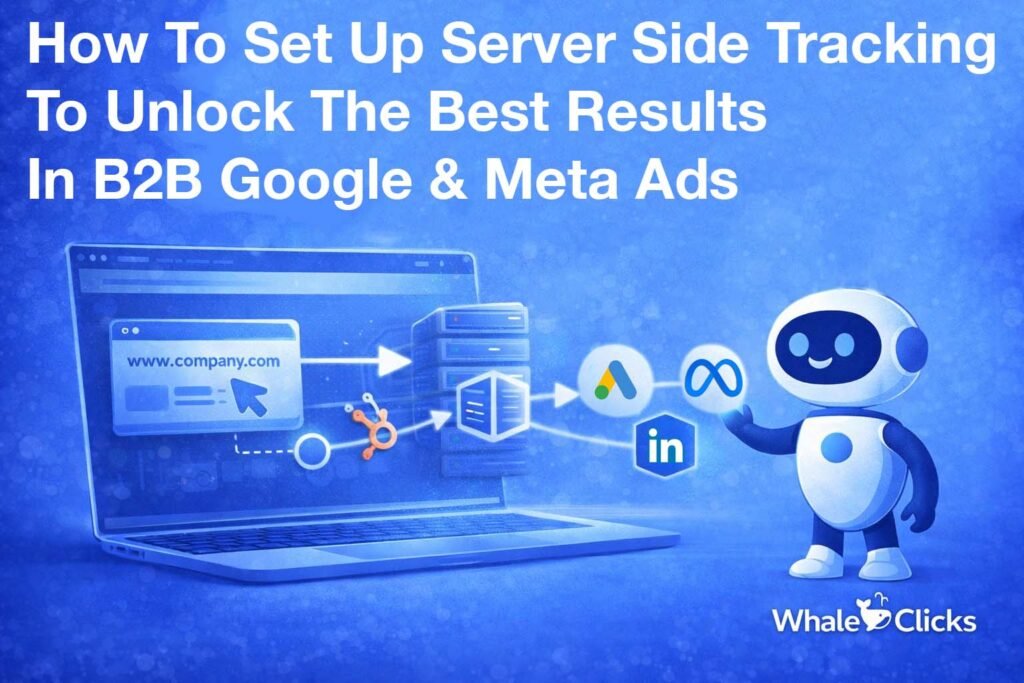
How To Preserve Tracking & Cookie Data With the Right HubSpot and Google Ads Architecture
The best way to preserve browser tracking and cookie data from the moment a potential customer clicks your ad to the moment they land on a conversion page is to use HubSpot to manage the landing page step. You can do this either on your main domain or on a HubSpot subdomain.
Your main website typically lives at YourCompany.com, while HubSpot landing pages live either on an embedded page within your main domain or on a separate HubSpot subdomain such as go.yourcompany.com or pages.yourcompany.com. This dual structure is the recommended default SaaS B2B PPC campaigns architecture for a very important reason.
Both options share the same root domain. That means cookies are shared automatically across your entire funnel, so from Google’s perspective, the visitor never leaves your site.
This has major implications for attribution. The Google Click ID (GCLID) survives. The GA4 session survives. Google Ads attribution survives. No cross-domain linking is required, and no complex engineering is needed just to preserve the session.
You can implement HubSpot pages in two ways.
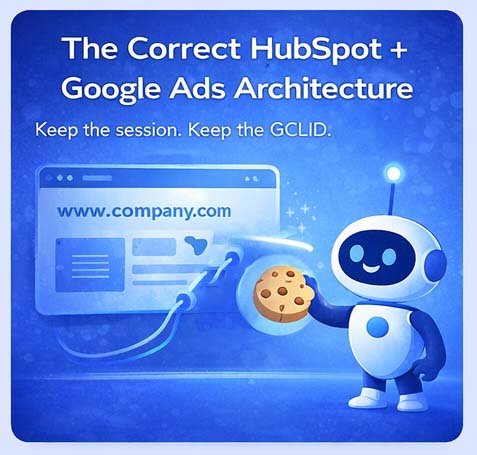
The first option is using a HubSpot embedded form on a landing page on your main domain. In this setup, the HubSpot forms are embedded directly into pages on your main website (www.company.com). The user never leaves your primary domain, so tracking continuity is fully preserved. This approach works well when you want a completely unified website experience.
The second option is to use a HubSpot landing page on a subdomain, such as go.company.com or pages.company.com. Even though the HubSpot landing pages live on a subdomain, they still share the same root domain. As a result, browser cookies remain intact, and the entire session is preserved across the funnel. From the user’s perspective and Google’s, the journey is still a single continuous visit.
Subdomains are especially powerful because they allow HubSpot to run A/B tests without disrupting the user journey or the tracking stack. A visitor can click an ad, land on a HubSpot page, submit a form, and everything remains part of one continuous session. This facilitates landing page A/B testing and rapid landing page creation and iteration directly inside of HubSpot, without requiring access to your main website or your IT team.
This architecture serves as the foundation for a reliable B2B Google Ads tracking system.
Where Google Tag Manager Should Live
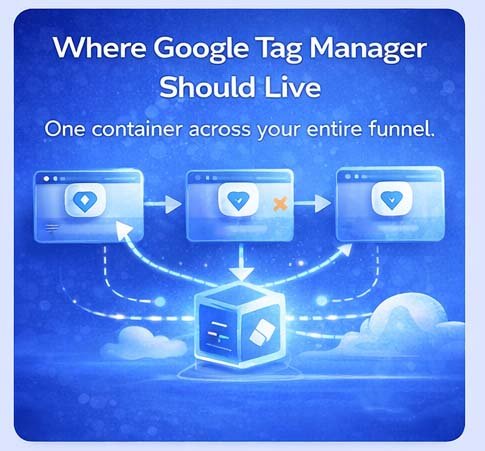
One of the biggest mistakes B2B companies make is installing Google Tag Manager (GTM) only on their main website. When this happens, any HubSpot landing pages running on a subdomain are treated as a separate environment, and tracking stops at the most important moment of the funnel.
The correct approach is simple but often overlooked. The same Google Tag Manager container must be installed on both your main website and all HubSpot landing pages, including thank-you pages.
This way, your HubSpot landing pages are not treated as separate properties, but simply as another section of the same website. When GTM is missing from HubSpot pages, Google Ads cannot see the conversion. This is the number one reason Google Ads reports fewer conversions than HubSpot.
Installing GTM on HubSpot pages is straightforward. In HubSpot settings, add the GTM snippet to the page template header HTML. Once installed, GTM loads across landing pages, thank-you pages, and optionally your blog.
Now tracking can fire anywhere in the funnel.
Where Your Thank-You Page Should Live
A common legacy workaround was redirecting users back to the main domain to trigger conversion tags. That approach is outdated and unnecessary.
Your thank-you page can now live on the same HubSpot subdomain when you are using HubSpot landing pages. The ideal flow is simple and clean. A user clicks an ad, lands on the subdomain: go.company.com/landing-page, which is a HubSpot landing page, submits the form, and lands on a go.company.com/thank-you page right inside of HubSpot.
There is no redirect back to the main domain. This eliminates friction, removes session risk, improves page speed, and simplifies analytics. Moving users across domains just to fire a conversion tag adds complexity without adding value.
The entire conversion flow stays on the subdomain, effectively inside HubSpot. This simplifies the feedback loop from HubSpot back to Google Ads, better educating Google’s algorithms and helping it find higher-quality customers.
How Conversions Fire in Google Tag Manager
There are two main ways to trigger conversion in this architecture, and you need to use both.
The first method is the thank-you page trigger. When the URL contains the thank-you path, GTM fires the Google Ads conversion tag, the GA4 conversion event, the LinkedIn Insight Tag, and/or the Meta Lead event. This method is simple and extremely reliable.
The second method is the HubSpot form submission event. HubSpot pushes a dataLayer event when forms are submitted. GTM can listen for this event and fire conversions instantly without requiring a thank-you page. This is especially powerful for multi-step funnels and embedded forms on your main domain.
Using both methods creates redundancy and improves reliability.
Capturing the GCLID Inside HubSpot
Capturing the Google Click ID inside the HubSpot CRM closes the loop for B2B advertising. With auto-tagging enabled in Google Ads and ad tracking enabled in HubSpot, the platform stores the original source, campaign, and GCLID.
This allows offline conversion imports later in the funnel. So now, instead of optimizing for cheap leads, Google Ads can optimize for revenue and pipeline.
This step transforms advertising from lead generation into revenue generation.
Enter Server-Side Tracking
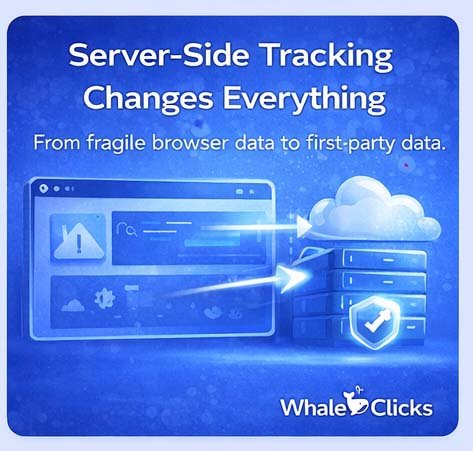
Traditional tracking sends data directly from the browser to Google or Meta, but current browsers aggressively block and delete this data, making cookies expire faster.
Server-side tracking changes the flow. Instead of sending data directly to the ad platforms, the browser first sends events to your own tracking server. The server then forwards the data to Google, Meta, and analytics tools.
This turns tracking into first-party data. Ad platforms trust first-party data, which improves their smart bidding and attribution modeling.
For B2B campaigns with long sales cycles and low conversion volume, this improvement is enormous.
The Two Google Tag Manager Set Up
Server-side tracking introduces a second Google Tag Manager container.
The web container runs in the browser on WordPress and HubSpot pages. It collects events and user interactions.
The server container runs on a dedicated subdomain such as gtm.company.com. It receives events from the web container and forwards them to Google Ads, GA4, and Meta.
The web container collects. The server container dispatches.
How to Set Up the GTM Server Container (and What It Costs)
Deploying the Google Tag Manager server container may sound technical, but in practice, it is a structured process that most B2B teams can implement. Once the steps are clear. The goal is simple. Instead of sending tracking data directly to Google from the browser, the browser first sends events to your own server. That server then forwards the data to Google Ads, GA4, Meta, and other platforms as first-party data.
This dramatically improves tracking reliability and conversion matching.
Step 1: Create a Server Container in Google Tag Manager
Inside Google Tag Manager, create a new container and select Server as the container type. This creates a dedicated server-side container separate from your existing web container.
Once created, GTM provides a container configuration string and deployment instructions. At this stage, the container exists but is not yet hosted anywhere. The next step is provisioning the hosting infrastructure.
Step 2: Deploy the Server Container on Google Cloud
Google has designed its server-side GTM to run on Google Cloud Run, which automatically provisions the infrastructure required to host your tracking server.
Inside the server container workspace, click Admin : Container Settings : Automatically Provision Tagging Server.
GTM will then guide you through connecting a Google Cloud project. Once connected, Google automatically creates:
A Cloud Run service.
A load balancer.
A secure HTTPS endpoint.
Autoscaling infrastructure.
You do not need to manually configure servers or networking, and the deployment typically takes a few minutes.
Once the process completes, you receive a default server URL such as:
This is your tracking endpoint, but we´re not done yet.
Step 3: Move the Server to a First-Party Subdomain
This is one of the most important steps for performance and data quality.
Instead of using the default Google Cloud URL, you create a first-party tracking subdomain, typically:
gtm.company.com
Why this matters is simple. When the tracking endpoint lives on your own domain, browsers treat the data as first-party rather than third-party. This dramatically improves cookie lifespan and match rates.
To configure this, you create a DNS record in your domain provider and map it to the Google Cloud load balancer. Google provides step-by-step instructions directly inside GTM for this process.
Once the DNS propagates, your tracking server lives at:
Now your company owns the tracking endpoint.
Step 4: Connect the Web Container to the Server Container
Your existing GTM web container still runs on your website and HubSpot pages, but its role has changed slightly.
Instead of sending GA4 events directly to Google, the web container sends events to the server endpoint.
Inside your GA4 configuration tag, you simply change the transport URL to your new server endpoint:
From this point forward, the browser sends data to your server first.
This single change activates server-side tracking across the entire funnel.
Step 5: Configure Server-Side Tags
Inside the server container, you now configure tags that forward data to platforms.
Typical setup includes:
GA4 server tag.
Google Ads conversion linker.
Google Ads conversion tag.
Meta Conversions API tag.
The server container receives events, enriches them with first-party cookies and identifiers, and then forwards them to each platform.
The browser collects. The server dispatches.
What Does It Cost to Run Server-Side GTM?
This is the question every marketing team asks. The good news is that server-side tracking is surprisingly affordable. Google Cloud Run pricing is based on usage, meaning you only pay for the traffic your tracking server processes.
A typical real-world cost for B2B companies looks like this:
Small traffic websites: $10–$25 per month.
Mid-sized B2B lead generation: $25–$60 per month.
High traffic or e-commerce scale: $70–$150 per month.
Most B2B companies fall in the $20–$50 per month range.
The reason costs stay low is that event-tracking requests are lightweight. Even thousands of conversions per month use minimal computing resources, and compared to wasted ad spend caused by broken tracking, this cost is negligible.
Why This Changes Everything
Once deployed, your tracking stack shifts from fragile browser scripts to a durable first-party data pipeline. The browser sends events to your server,
your server sends verified data to Google Ads and GA4. These enhanced conversions match more qualified users, and Google’s smart bidding receives stronger signals.
This is why server-side GTM is becoming the standard foundation of modern B2B advertising infrastructure.
Enhanced Conversions and Match Rate
When HubSpot forms collect email and phone data, the server container securely hashes this information and sends it to Google Ads as enhanced conversions. Google then matches these leads to logged-in users.
This enables match rates to increase dramatically. As more conversions appear in Google Ads, smart bidding gains stronger signals. Campaigns stabilize, and cost per acquisition drops over time.
This is where server-side tracking begins to impact performance, not just measurement.
Adding Meta Conversions API
The same server-side GTM container also becomes the central hub for Meta tracking. This is critical because Meta tracking is even more fragile in the browser environment than Google tracking. Ad blockers, cookie restrictions, and iOS privacy features often prevent the Meta Pixel from reliably sending conversion data.
This is where the Meta Conversions API, commonly called CAPI, becomes essential.
With server-side GTM in place, your tracking server sends conversion events directly to Meta from your own first-party domain. So instead of relying only on the browser pixel, your server now sends a second, more reliable copy of every important event.
This creates a hybrid tracking setup. The browser still fires the Meta Pixel event, while the GTM server container sends the same event directly to Meta through the Conversions API. Both events share an event ID, allowing Meta to automatically deduplicate them and count the conversion only once.
This dual delivery dramatically improves data reliability. Browser events can be blocked or deleted, but server events are much harder to interrupt because they are sent as first-party data from your own domain. As a result, Meta receives a much more complete picture of your funnel.
When Meta receives more complete conversion data, event-matching quality improves. Meta can match more leads to real users, providing the algorithm with stronger signals to optimize campaigns. This typically leads to better attribution, more stable optimization, and lower cost per lead over time.
Many B2B advertisers see a significant increase in attributed conversions after implementing Meta’s Conversions API through server-side GTM. This does not mean new conversions suddenly appear. It means Meta can finally see more of the conversions that were already happening.
By using the same server container for Google, GA4, and Meta, your tracking server becomes a unified marketing data hub that feeds every ad platform reliable first-party conversion data.
The Marketing Data Hub
At this stage, the tracking server becomes your unified marketing data hub, I.E. one pipeline that sends events to Google Ads, GA4, Meta, LinkedIn, and other platforms.
So now, instead of fragmented browser tracking, your company owns the data pipeline.
Visualizing the Modern B2B Funnel
A clean B2B tracking funnel should look like this: A user clicks one of your Google or Meta ads and lands on a HubSpot subdomain landing page with GTM installed (or an embedded HubSpot form on a landing page on your main domain). The user then submits the form and lands on a HubSpot thank-you page (or your main domain thank-you page). GTM then fires the conversion and sends the data to the server container. The server then sends the conversion to Google Ads, GA4, and/or Meta. The lead is then stored in HubSpot with the GCLID and user data. Offline conversions are later sent back to Google Ads.
This is the gold-standard tracking architecture for B2B growth.
Why This Improves Performance
Ad platforms optimize based on feedback loops. When half the conversions disappear, optimization suffers; when the majority are captured and matched, algorithms perform better.
Companies that implement this architecture often see more conversions on ad platforms, lower CPA over time, and more stable performance, and your B2B Google and Meta ads can finally reflect reality and deliver a higher ROI.
How WhaleClicks Helps B2B Teams Implement Server-Side Tracking
Building a server-side tracking architecture correctly requires experience across Google Ads, Meta, HubSpot, GTM, and offline conversion imports, and when implemented properly, it becomes a long-term growth engine.
At WhaleClicks, we design and deploy full-funnel tracking stacks that allow B2B companies to move from guesswork to predictable revenue growth. We connect the entire journey from click to customer so ad platforms can optimize for real business outcomes.
If your campaigns are generating poor leads and your conversion numbers never quite match, it is time to fix your tracking foundation. Once your data pipeline is solid, performance marketing finally begins to work the way it is supposed to.
The future of B2B Google Ads and Meta Ads belongs to companies that own their data. WhaleClicks helps you build that foundation and turn your ad spend into a reliable growth engine. Contact us today.